Designing Nutrition Labels
The nutrition facts label, also known as the nutrition facts panel or nutritional information, is a label required on most packaged foods. The purpose of nutrition labels is to provide the necessary information consumers need to make choices regarding the foods they eat. It is designed to provide facts for nutrients that impact common health concerns and aid those following a special diet. To serve this purpose, nutrition labels show serving sizes, calories, fats, sugar and protein content, and other vitamin and mineral levels.
For the US, the FDA published new standards for nutritional labels on May 20, 2016. Companies must adhere to these changes by January 2020. Major changes include adjusting the calories font size and adding more nutritional values. Additional information from the FDA on these changes as well as how to understand and use the label is available via their pages "Changes to the Nutrition Facts Label" and "How to Understand and Use the Nutrition Facts Label".
Designing nutrition labels in DEACOM depends on the approach used to store the necessary information (options described below) and generally includes configuring User Fields, User Calculations, System Constants, Part Form User Tags, and designing the Part Form itself. All of this is described below, along with helpful links and examples.
Configuration
To create labels, several Parts and/or User Field and User Calculations must be created. Most information is discussed below, but the Designing a Part Numbering System and Creating Parts and Configuring User Fields and User Calculations pages may also be used for reference and additional process information.
The process of designing labels and using the Report Designer is discussed below and in the Managing Part Forms page.
To print labels, printers must be installed. Refer to Configuring Printers for installation and setup instructions.
Users should also reference the "Configuration" section of the Managing Part Forms page prior to creating any part form.
Process
Selecting an approach for storing nutritional information
In DEACOM, nutritional values can be entered in user-defined fields on Item Masters or using regulatory BOMs. Where to store the information, and how to manage it depends on the needs of the specific company, which may choose to use a static approach or a dynamic approach.
Static Approach
In the case in which the nutritional values will remain the same (i.e. pre-printed packaging materials), nutritional values can be entered directly into User Fields on the Finished Good. By entering nutritional values on the Finished Good, the user will not be required to enter additional information on the lower levels of the formula. The advantage of this method is initial data entry is minimal. However, the disadvantage is values would require manual update if there were any changes made to the BOM of the Finished Good.
Dynamic Approach
There are multiple approaches that can be used to produce dynamic nutritional information for Finished Goods. Nutritional values are entered on bottom level Parts, through either Item Master User Fields, or regulatory BOMs. Then, through Part Form design and User Calculations, nutritional information for Finished Goods is kept up-to-date when changes are made to BOMs and Raw Materials in the system.
Entering nutritional values in User Fields on the Raw Material is the preferred method by most companies. More data is defined initially (including User Calculations), however, the values update as Formulas change and are developed.
Regulatory BOMs can also be created for bottom level Parts to store nutritional information. Rather than creating User Fields to store nutritional information, Parts representing nutritional information can be created then used in regulatory BOMs. This will provide a roll up of nutritional information on higher level BOMs without any calculations. The nutritional value roll up will be visible in the Regulatory Summary tab of a BOM and represent the total amount of each nutritional item in the BOM being viewed. Below is an example of a regulatory summary for nutrition facts.
|
Part Number |
Description |
Formula Qty |
Formula Unit |
|---|---|---|---|
| Calcium (mg) | Reg BOM Calcium | 45.034255 | Each |
| Calories | Reg BOM Calories | 368.081987 | Each |
| Calories From Fat | Reg BOM Calories From Fat | 287.565419 | Each |
| Carbohydrates (g) | Reg BOM Carbohydrates | 24.181282 | Each |
| Dietary Fiber (g) | Reg BOM Dietary Fiber | 15.917664 | Each |
| Fat (g) | Reg BOM Fat | 31.934525 | Each |
| Iron (mg) | Reg BOM Iron | 1.163362 | Each |
This regulatory information can then be used with Part Form User Tags to calculate nutritional information on a Part Form. This approach will not require any User Fields or User Calculations to be built into the system. The regulatory summary will replace roll up calculations, outlined below, then all additional calculations would be done through a Part Form User Tag and in Part Form design. This can be more difficult to validate changes to labels, since the only way to view the nutritional values is by printing a label.
When entering regulatory BOMs for nutritional information, the "Formula Unit" should be set to a standard Unit Of Measure (i.e. 100g of avocado, 100g of tomato, etc.) and all entered nutritional values should be based on the selected Unit of the header part. Regulatory BOMs should also be set with a "Batch Yield Calc." of "Specified" and a "Batch Yield" of "1".
Configuring Bill of Material User Calculations
When entering data in User Fields on the bottom level Parts, BOM calculations will be needed to calculate nutritional values of Finished Goods. BOM calculations allow users to change BOMs at any level and still maintain accurate nutritional data. BOM calculations will recalculate any time a BOM is changed and saved.
- There are three levels of BOM calculations needed to provide full nutritional information.
- The first level is the roll up, which is where total amounts of each nutrient in a BOM are determined.
- Once totals are known, the amount in the Finished Good can be calculated, based on a single serving of the Finished Good.
- The last step is then to calculate the amount of nutrient based on the FDA daily recommended amounts.
- BOM calculations will also be visible from the Calculations tab of a BOM, allowing users to easily view and validate nutritional data.
Defining roll up calculations
In the first level of calculations, the total amount of each nutrient in a BOM is determined. One calculation is set up for each nutrient being tracked. Roll up calculations are set up as bottom level sum calculations. The calculation will drill down through BOMs to the bottom level Parts, where nutritional data is stored, and sum information based on the expression entered.
Example: Assume there is a User Calculation with the following details:
- Table: BOM
- Description: Total Calories
- Field Name: uc_total_calories
- Field Type: Numeric
- Type: Sum
- Picture: 99,999,999.99
- Expression: 453.6 * totwgt * u_calories / u_serving_size
- Level: Bottom
The expression shows a roll up calculation for calories. First, the calculation determines the calories in a gram for a bottom level item, then multiplies it by the weight in grams the item contributes to the BOM. The expression will be run for every BOM line, because it has been set as a bottom level calc. The result from each line will then be summed and the result will be the total amount of that nutrient in a BOM. The result can be viewed on the BOM's Calculations tab.
Defining Finished Good per serving calculations
Once a roll up calculation is created for each nutrient, the amount of each nutrient in a serving of the header Part or Finished Good can now be determined. To calculate nutritional data for a serving of a Part, the serving size must be known. This can be stored in a User Field on the Finished Good or calculated in another User Calc. When calculating, we can use household serving size of a cup or piece weight. If household serving size is needed on the final print out, this allows the storing of that information, and if it is changed, the serving size in grams used in calculations will be recalculated.
To calculate Finished Good serving size, a User Field to store "Cup Weight" in grams, as well as "Piece Count" and "Piece Weight" are needed. Below is an example of these fields on an Item Master User Fields tab. Also shown is a pick list for the "Household Serving Size", which is detailed next.
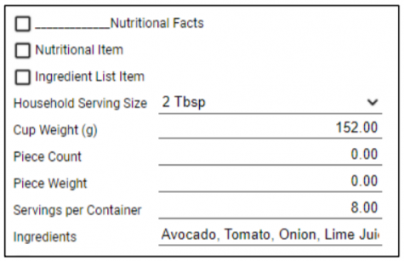
Example: Assume there is a User Field with the following details:
- File: Item Master
- Name: Household Serving Size
- Field Name: u_household_serving_size
- Field Type: Picklist
This pick list will also store a ratio to convert a cup weight in grams to the number of grams in the household unit selected. The Pick List options would be configured as follows:
|
List Item |
Memo |
|---|---|
| List Item | Memo |
| 1 Cup | 1.000000000 |
| 1 Tbsp | 0.062500000 |
| 1 Tsp | 0.020833333 |
| 1/2 Cup | 0.500000000 |
| 1/2 Tbsp | 0.031250000 |
| 1/2 Tsp | 0.010416667 |
| 1/3 Cup | 0.333333333 |
| 1/4 Cup | 0.250000000 |
| 1/4 Tbsp | 0.015625000 |
| 1/4 Tsp | 0.005208333 |
| 2 Tbsp | 0.125000000 |
| 2 Tsp | 0.041666667 |
| 2/3 Cup | 0.666666667 |
| 3/4 Cup | 0.750000000 |
| Piece Weight | - |
Once the User Fields storing household serving size information have been created, a BOM calc can be created to determine serving size. This calc will be set as a secondary total, so it pulls the information from the header Part, rather than the lower level items.
Example: Assume there is a User Calculation with the following details:
- Table: BOM
- Description: FG Serving Size
- Field Name: uc_fg_serving_size
- Field Type: Numeric
- Type: Secondary Total
- Picture: 99,999,999.99
- Expression: IIF(u_household_serving_size = 'Piece Weight', u_piece_count * u_piece_weight, u_Cup_Weight * val(u_household_serving_size))
- Level: Top
The calculations to determine nutrients in a single serving of the Finished Good can now be entered. These calculations will be set up as secondary totals, because they will be using results from the bottom level calculations in their expression. These calculations determine the nutrient in a gram of the Finished Good, and then multiples it by the serving size of the Finished Good in grams. The grams in a serving will come from the User Field on the header Part, or the User Calculation outlined above. The FDA has rounding rules pertaining to how each piece of information is to be displayed on a nutrition label. These rounding rules can be applied as part of this calculation, so that the output on the User Calculations tab displays the same as it will when printed on a label.
Below are the rounding rules for calories:
|
Nutrient |
Increment Rounding |
Insignificant Amount |
|---|---|---|
| Calories Calories from Fat Calories from Saturated Fat |
< 5 cal - express as 0 | < 5 cal |
| <50 cal - express to nearest 5 cal increment | ||
| > 50 cal - express to nearest 10 cal increment |
The FDA rounding rules can be applied using nested IIF statements. The IIF statement will evaluate which rounding rule needs to be applied to the calculation, and then simple math can be used to round the output.
Example: Assume there is a User Calculation with the following details:
- Table: BOM
- Description: FG Calories Per Serving
- Field Name: uc_fg_calories_per_serving
- Field Type: Numeric
- Type: Secondary Total
- Picture: 99,999,999.99
- Expression: IIF(uc_total_calories / (totwgt * 453.592)) * uc_fg_serving_size <5, 0, IIF((uc_total_calories / (totwgt * 453.592)) * uc_fg_serving_size <=50, ROUND(((uc_total_calories / (totwgt * 453.592)) * uc_fg_serving_size) /5, 0) * 5, ROUND(((uc_total_calories / totwgt * 453.592)) * uc_fg_serving_size) / 10, 0) * 10))
- Level: Bottom
Some of the FDA rounding rules require output of a statement such as “Less than 5mg” rather than a numeric output. These can also be applied during this calculation, but some adjustments are needed. The calculation will still be a secondary total, but the field type should be set to character, and any numeric outputs will use the string function.
Below are the rounding rules for cholesterol, which require a “less than 5mg” statement, when the value is between 2-5 mg.
|
Nutrient |
Increment Rounding |
Insignificant Amount |
|---|---|---|
| Cholesterol | < 2 mg - express as 0 | < 2 mg |
| 2 - 5 mg - express as "Less than 5 mg" | ||
| > 5 mg - express to nearest 5 mg increment |
Example: Assume there is a User Calculation with the following details:
- Table: BOM
- Description: FG Cholesterol Per Serving
- Field Name: uc_fg_cholesterol_per_serving
- Field Type: Character
- Type: Secondary Total
- Picture: 99,999,999.99
- Expression: IIF((uc_total_cholesterol / (totwgt * 453.592)) * uc_fg_serving_size <2, STR(0), IIF((uc_total_cholesterol / (totwgt * 453.592)) * uc_fg_serving_size <=5, "Less than 5 mg", STR(ROUND((uc_total_cholesterol / (totwgt * 453.592)) * uc_fg_serving_size / 5, 0) * 5)))
- Level: Bottom
Defining percent daily value calculations
Finally, the amount of a nutrient in an item needs to be calculated as a percentage of the FDA daily recommend value. To calculate how the amount of a nutrient in a serving compares to the FDA daily recommended value, the daily recommended values must first be identified. These can be hard coded inside the calculations, or stored as System Constants. If stored as System Constants, they can be maintained in one place, and if updated, will update calculations as well. Below is an example of nutrients daily recommended values being stored as System Constants.
|
Name |
Value |
|---|---|
| calcium_per_day | 1,000.000000 |
| calories_per_day | 2,000.000000 |
| carbs_per_day | 300.000000 |
| cholesterol_per_day | 300.000000 |
| fat_per_day | 65.000000 |
| fiber_per_day | 25.000000 |
| iron_per_day | 18.000000 |
| potassium_per_day | 4,700.000000 |
| saturated_fat_per_day | 20.000000 |
| sodium_per_day | 2,400.000000 |
| vitamin_a_per_day | 5,000.000000 |
| vitamin_c_per_day | 60.000000 |
The next step in calculating percent of daily recommended values is to create a BOM calculation, which will use other BOM calculations as well as the System Constants. This calculation will be secondary total as well, and should recreate the math used to determine the amount of a nutrient in a single serving of the Finished Good.
The Finished Good single serving calculation has had rounding applied to it, and recreating the math in this calculation will provide more accurate results. Once this has been done, the amount in a serving can be divided by the daily recommended amount stored in a System Constant.
Lastly, FDA rounding rules for these percent daily calculations can be applied using the same nested IIF statements previously mentioned.
Example: Assume there is a User Calculation with the following details:
- Table: BOM
- Description: Vitamin A Percent Daily
- Field Name: uc_vitamin_a_percent_daily
- Field Type: Numeric
- Type: Secondary Total
- Picture: 99,999,999.99
- Expression: IIF((((uc_total_vitamin_a / (totwgt * 453.592) / gu_vitamin_a_per_day)) * uc_fg_serving_size) * 100 <2, 0, IIF((((uc_total_vitamin_a / (totwgt * 453.592) / gu_vitamin_a_per_day)) * uc_fg_serving_size) * 100 <=10, ROUND(((((uc_total_vitamin_a / (totwgt * 453.592) / gu_vitamin_a_per_day)) * uc_fg_serving_size) * 100) / 2, 0) * 2, ROUND(((((uc_total_vitamin_a / (totwgt * 453.592) / gu_vitamin_a_per_day)) * uc_fg_serving_size) * 100) / 5, 0) *5))
- Level: Bottom
Defining ingredients lists
Like nutritional data, an ingredients list can be stored in a User Field on an Item Master or dynamically generated. Storing the data in a static field will require maintenance on the Item Master any time a change is made to the BOM. To dynamically generate an ingredients list, BOMs will need to have a consistent and predictable structure.
Static Approach
In the case of static ingredients, the User Field of “Ingredients” on the Item Master can be pulled onto the nutritional label. The information will be input exactly as listed on the "Ingredients" line in the Item Master.
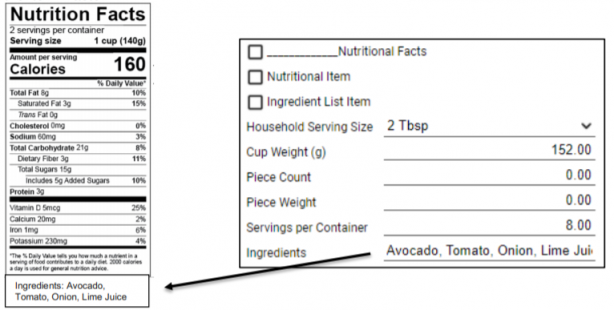
Dynamic Approach
Dynamic ingredients list generation will require a Part Form User Tag. The first step in this process is to update the Inventory > Options > Printing tab. The “Summarize Regulatory BOM” flag must be unchecked on the Part Form.
In this example, a User Field is used to identify items that should appear in the ingredients list (by checking the "Ingredient List Item" flag in the above picture) when created. Depending on the way the data is set up in the system, a flag or another type of logic can be used to ignore packing materials, or other items that should not be included in the ingredients list.
The Part Form User Tag will call out the "Base Table" where the ingredient list part information is found, which in this case will be the FULLREGBOM. This table includes all items in a BOM explosion report, including regulatory parts.
- The "Fields" memo will list all fields needed to either filter or display results - in this example u_ingredient_list_item, totwgt, pr_descrip.
- The "Filter" memo will limit results displayed, in this case only items that are set to be in the ingredients list.
- The "Sort" memo will put the list in descending order based on weight in the BOM.
- The "Line Separator" will be used to comma delineate the list.
Once the Part Form User Tag has been created, it can be used in part form design. The Part Form User Tag will be available to the Block Type setting for fields on a Part Form. In the example below, an ingredients list will be generated through the Part Form User Tag, displaying the Part Description. If Part Descriptions are not able to be used in an ingredients list, because they were created for internal recognition, a User Field storing how a part should be defined in an ingredients list can be used. Below is an example of how to use the Part Form User Tag in a field on a Part Form to generate an ingredients list. This field is configured using the Report Designer.
- Type: Expression
- Block Type: Ingredients List
- Encoding: None
- Expression: " " + ALLT(pr_descrip)
- Position: Top
- Top: 4.5310
- Left:0.8950
- Width: 2.8000
- Height: 0.2000
The output from this field when printed will read “Ingredients: Avocado, Tomato, Onion, Lime Juice, Cilantro, Sea Salt.”
Handling Allergens
User Fields can also be set up to identify what allergens exist in a product. These User Fields are created on the Item Master and completed for bottom level Parts. Below is an example of these fields on an Item Master User Fields tab.
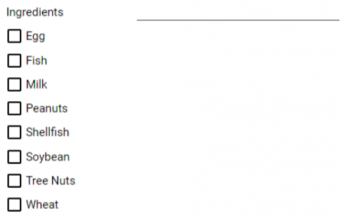
Once the User Fields have been created, BOM calculations can be used to identify all allergens in a Finished Good. These will be bottom level Maximum calculations. A Maximum can be used, because if any item in the BOM returns a value of 1, that allergen exists in the BOM. These logical fields return a value of 1 when checked.
|
Table |
Name |
Field |
Type |
Description |
|---|---|---|---|---|
| BOM | Allergen Egg | uc_egg | Maximum | IIF(uc_egg = 1, "Yes", "No") |
| BOM | Allergen Fish | uc_fish | Maximum | IIF(uc_fish = 1, "Yes", "No") |
| BOM | Allergen Milk | uc_milk | Maximum | IIF(uc_milk = 1, "Yes", "No") |
| BOM | Allergen Peanuts | uc_peanuts | Maximum | IIF(uc_peanuts = 1, "Yes", "No") |
| BOM | Allergen Shellfish | uc_shellfish | Maximum | IIF(uc_shellfish = 1, "Yes", "No") |
| BOM | Allergen Soybean | uc_soybean | Maximum | IIF(uc_soybean = 1, "Yes", "No") |
| BOM | Allergen Tree Nuts | uc_tree_nuts | Maximum | IIF(uc_tree_nuts = 1, "Yes", "No") |
| BOM | Allergen Wheat | uc_wheat | Maximum | IIF(uc_wheat = 1, "Yes", "No") |
| BOM | Allergens | uc_allergens | Secondary Total | IIF(uc_egg = "No" AND uc_fish = "No" AND uc_milk = "No" AND uc_peanuts = "No" AND uc_shellfish = "No" AND uc_soybean = "No" AND uc_tree_nuts = "No" AND uc_wheat = "No", "No", "Yes") |
An expression can then be used during Part Form design to evaluate each allergen present, and print it in an allergens list. For more information on Part Form design, refer to the Managing Part Forms page.
Designing the Part Form
DEACOM provides its own Part Form design tool for configuring any form of nutritional facts panel. Generally, labels will need to be generated in multiple sizes, display specific data for customers, and at some point, would need to be updated to meet FDA Standards. Dependent on the approach taken to store nutritional information, the Part Form will need to be designed with data and calculation set up in mind.
Static Approach
If using the static approach, the Part Form can pull information directly from the Item Master fields where the data is stored. This is the simplest Part Form to design.
Dynamic Approach
If using one of the dynamic approaches, there are multiple options for Part Form design. Once all levels of User Calculations, roll up, per serving, and percent daily have been created, the output from these calculations can be called directly onto the Part Form. This is done by calling the name given to the User Calculation during set up, using an expression such as:
-
ALLT(TRANS(VAL(uc_fg_calories_per_serving), "999"))
After creating roll up calculations, the additional per serving, and percent daily calculations could also be done on the Part Form, rather than creating additional levels of User Calculations. This would limit the amount of calculations needed in set up, but would also require a label to be printed any time the user wanted to view the full nutritional data for the Finished Good item. Creating all three levels of calculations allows the user to view this information on the Calculations tab of the BOM, using an expression such as:
-
ALLT(TRANS(VAL(uc_total_fat) / VAL(u_servings_per_container)) / 65) * 100, "999")) + "%"
The last dynamic approach, using regulatory BOMs, would require a different approach to Part Form design. The regulatory summary in this approach replaces the roll up calculations. Then during Part Form design, a Part Form User Tag would be used, along with math on the Part Form to replace the per serving, and percent daily calculations, as well as the FDA rounding rules, using an expression such as:
- IIF(VAL(VAL(bocount) / (pr_unitwgt * 453.592)) * VAL(uc_fg_serving_size) <5, 0,
- IIF(VAL(VAL(bocount) / (pr_unitwgt * 453.592)) * VAL(uc_fg_serving_size) <=50,
- ROUND(VAL(VAL(bocount) / (pr_unitwgt * 453.592)) * VAL(uc_fg_serving_size) / 5, 0) * 5,
- ROUND(VAL(VAL(bocount) / (pr_unitwgt * 453.592)) * VAL(uc_fg_serving_size) / 10, 0) * 10))
The FDA published new standards for nutritional labels on May 20, 2016. Companies must adhere to these changes by January 2020. Major changes include adjusting the calories font size and adding more nutritional values. The best approach to updating the Nutrition Facts Panel is to make a copy of the current label and adjust the design in a separate label based on the FDA guidelines. This is recommended because production and sales can continue to print the current label while necessary changes are made on a separate label to prepare for the deadline.
Updating old nutrition labels per new FDA standards
The FDA published new standards for nutritional labels on May 20, 2016. Companies must adhere to these changes by January 2020. Major changes include adjusting the calories font size and adding more nutritional values. The best approach to updating the Nutrition Facts Panel is to make a copy of the current label and adjust the design in a separate label based on the FDA guidelines. This is recommended because production and sales can continue to print the current label while necessary changes are made on a separate label to prepare for the deadline. Additional information from the FDA on these changes is available via their page Changes to the Nutrition Facts Label.
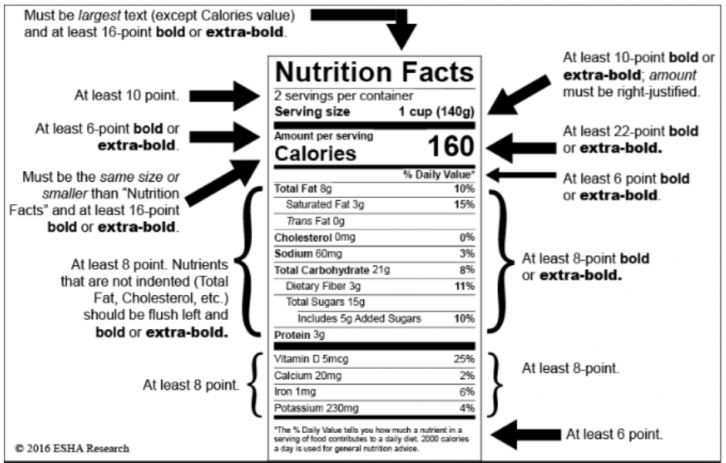
The new label can be created by exporting the old label while modifying the Part Form (this will make an .XML file on the computer), creating a new Part Form, and importing the old label while modifying the new Part Form. Once the label has been created, fonts can be updated by modifying the field and then modifying the "Font Name" field. From here, font style, font size, and display can be changed. For more information on modifying Part Forms and using the Report Designer, refer to the Managing Part Forms page.
Resizing the nutrition facts panel
Part Forms can be configured in different sizes by creating or using an existing page size that is set up in Print Outs > Maintenance > Page Size. A new page size can be created by clicking the "New" button and defining a Name, Width, and Height. Once the Page Size has been added, it can then be applied to the Nutritional Facts Panel by modifying the Part Form and selecting the Page Size through Report Properties on the Report Designer.
Designing nutrition facts panel using ZPL
DEACOM offers the ability to design any label through Zebra Programming Language (ZPL). This is useful if printing to a Zebra printer because of the fast printing speeds due to the native printer language and if there has been investment in Zebra printers. To print in ZPL, the Part Form "Print Method" must be set to "ZPL" and the design will need to be written in the ZPL code. DEACOM Help has several useful links that will assist in creating these from scratch including an online viewer and a Zebra Programming Guide. Refer to the following pages for more information:
- Configuring Printers - Installation instructions and printing troubleshooting tips
- Configuring ZPL Labels - Configuration, example, and helpful sites dealing with ZPL commands
Printing the nutrition facts panel
A Nutrition Facts Panel can be printed in several areas of DEACOM including Job Labels, Sales Labels, and Item Labels. Job Labels can be printed before or at the time of Production. Sales Labels can be printed before or during shipment and can be customer-specific.